Getting Started
Installation
Prompt Manager Pro is a native macOS application. Download the installer and follow these steps:
- Download the
.dmgfile - Open the disk image and drag Prompt Manager Pro to Applications
- Launch from Applications or Spotlight
- If prompted, allow the app in System Preferences > Security
Requirements: macOS 11.0 (Big Sur) or later. Works on both Apple Silicon and Intel Macs.
First Launch
When you first open Prompt Manager Pro, you'll see an empty dashboard. The app stores all data locally in ~/.claude/prompts/.
No account or sign-up is required. Your prompts stay on your machine.
Create Your First Prompt
- Click + New Prompt in the top left
- Enter a name (e.g., "Code Review Checklist")
- Write or paste your prompt content
- Optionally add a category and tags
- Click Save
Quick Tour
Prompt Manager Pro has seven main screens you can navigate using the title bar or keyboard shortcuts:
- Dashboard - Home screen with prompt cards (Cmd + D)
- Library - Advanced table view for bulk management (Cmd + L)
- Create/Edit - Prompt editor (Cmd + N)
- Tags - Tag cloud interface for managing tags
- Categories - Category management with icons and colors
- Analytics - Usage statistics and trends (Cmd + Y)
- Settings - App customization (Cmd + ,)
Core Features
Dashboard
The Dashboard is your home screen, showing prompts as cards you can quickly search, filter, and copy.

Each prompt card shows:
- Name - Click to copy the title
- Category badge - Colored label for organization
- Tags - Clickable for filtering
- Star button - Mark as favorite
- Usage count - How many times you've used it
- Variation badge - Shows if prompt has variations
- Content preview - Click to copy full content
Sort Options
Click the Sort dropdown to organize your prompts:
- Recently Used - Last used prompts first
- Recently Created - Newest prompts first
- Recently Modified - Recently edited first
- Most Used - Most copied/viewed first
- Alphabetical - A-Z by name
- Starred First - Favorites at the top
Copying Prompts
Click to copy with a single action:
- Copy title - Click the prompt name
- Copy content - Click the content preview area
Starring Prompts
Hover over a card and click the star button to mark favorites. Use "Starred First" sort to keep favorites at the top.
Library
The Library provides advanced prompt management with two display modes. Press Cmd + L to open.
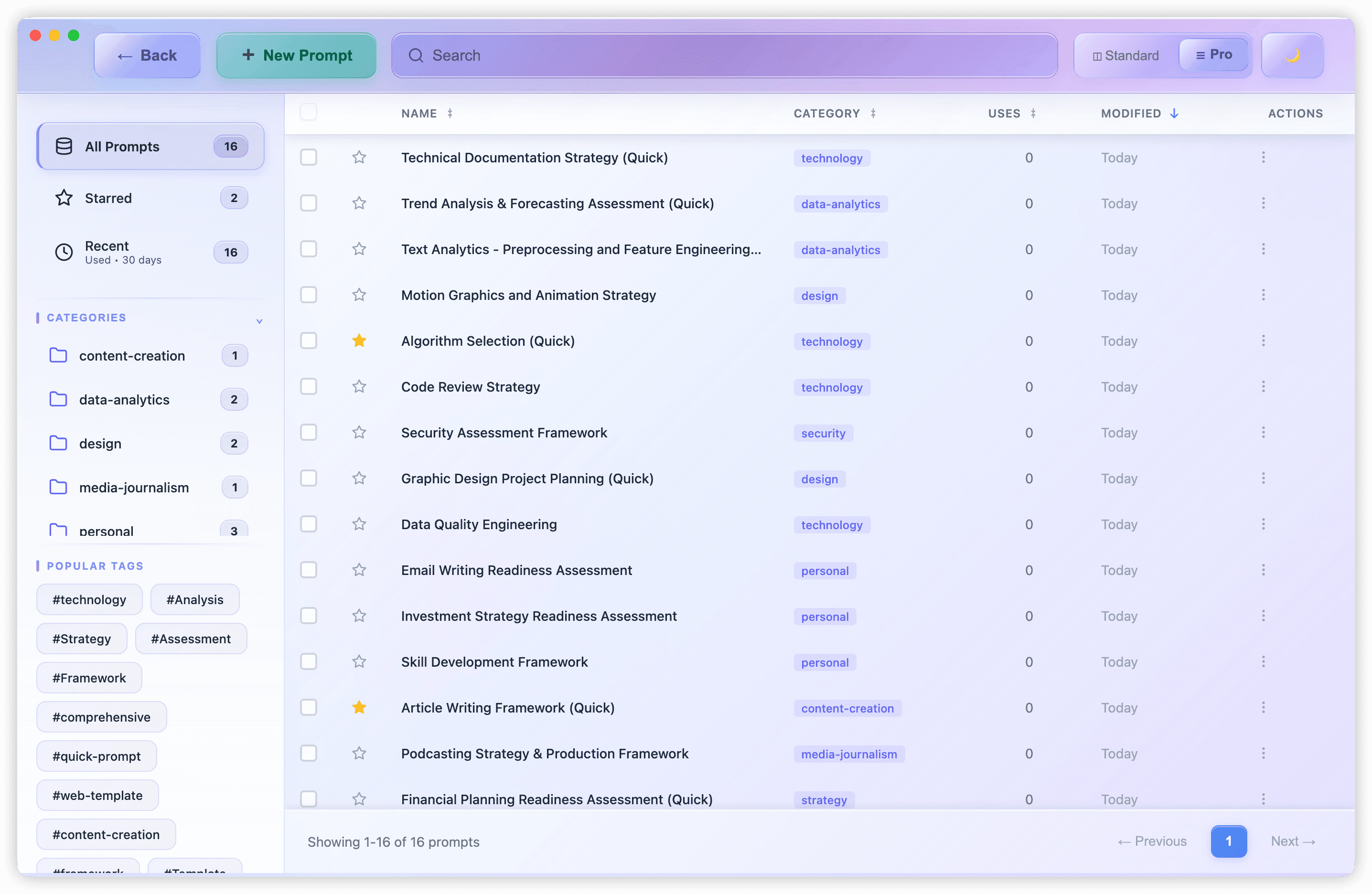
Standard Mode
Card-based layout with category sidebar for quick filtering. Best for visual browsing and moderate collections.
Pro Mode
Table view with sortable columns, pagination, and multi-select checkboxes. Best for large collections and bulk operations.
Density Options
In Pro Mode, choose how compact the table appears:
- Comfortable - Spacious rows with full details
- Compact - Balanced view (default)
- Dense - Maximum prompts per screen
Create & Edit Prompts
Open the editor with Cmd + N for new prompts, or click Edit on any existing prompt.
Editor Fields
- Name - A descriptive title (required)
- Content - Your prompt text (required)
- Category - Select or create a category
- Tags - Add multiple tags for cross-referencing
- Language - Optional programming language hint
Saving Shortcuts
- Cmd + S - Save from anywhere on the form
- Cmd + Enter - Quick save from content textarea
- Escape - Discard and close
Tip: Use descriptive names like "Email - Decline Politely" instead of generic names. Include action verbs and context for easier searching.
Categories & Tags
Organize your prompts with categories and tags:
- Categories - Each prompt has one category (like "Writing" or "Coding")
- Tags - Prompts can have multiple tags (like "email", "formal", "client")
Categories are for broad organization. Tags are for cross-cutting topics that span categories.
Prompt Variations
Create different versions of the same prompt without duplicating. For example, a "Summary" prompt might have:
- Brief summary (1 paragraph)
- Detailed summary (full page)
- Executive summary (bullet points)
Variations are perfect for A/B testing and iterating on prompts.
Search & Filter
Find prompts quickly with the search bar. Search by:
- Name - The prompt title
- Content - Text inside the prompt
- Tags - Use
#tagname
Press Cmd + F to focus the search bar.
Tips: Partial matches work ("sum" finds "summary"). Search is case-insensitive. Click category badges or tags to filter instantly.
Analytics
Track how you use your prompts. Open Analytics with Cmd + Y or from the menu.
Overview Cards
- Total Prompts - How many prompts you have
- Total Usage - Total times prompts were copied/viewed
- Daily Average - Average uses per day
- Top Category - Your most-used category
Usage Trend Chart
Visualize your prompt usage over time. See which days you use prompts most and identify patterns.
Category Distribution
See how your usage breaks down by category. Identify underused categories and understand your patterns.
Time Range
View analytics for different periods: Last 7 days, 30 days, 90 days, or 1 year.
Bulk Operations
Work with multiple prompts at once in Library Pro Mode. Use checkboxes to select prompts, then apply operations.
Available Operations
- Duplicate - Create copies of selected prompts
- Move to Category - Move prompts to a different category
- Add Tags - Apply the same tags to multiple prompts
- Delete - Remove multiple prompts (with confirmation)
Selection Tips
- Click header checkbox to select all on current page
- Use filters first to narrow down, then select
- Review selections before clicking Delete
- Work in batches of 10-20 for large operations
MCP Integration
What is MCP?
MCP (Model Context Protocol) lets you use your saved prompts directly inside Claude and other AI assistants without switching apps.
Without MCP:
- Open Prompt Manager Pro
- Find and copy a prompt
- Switch to Claude
- Paste the prompt
With MCP:
- Ask Claude: "Use my 'Email Decline' prompt"
- Claude finds and uses it automatically
MCP is optional. You can use Prompt Manager Pro perfectly well with copy/paste if you prefer.
App Store Version Setup
macOS Sandbox Restrictions
The App Store version runs in a macOS sandbox for security. This means MCP integration requires manual configuration instead of automatic installation.
What's Different in the App Store Version
- Only Claude Desktop and Claude Code are shown as supported clients
- "Install to All" automatic setup button is not available
- Each client shows "Manual Setup" instructions instead
- A notice explains the sandbox limitation in the app
The MCP connection uses an HTTP bridge (npx mcp-remote) that requires Node.js to be installed on your Mac.
Installing Node.js
The App Store version requires Node.js because Claude Desktop connects via npx mcp-remote. Choose one of these installation methods:
Method 1: Homebrew (Recommended)
Best if you already use Homebrew for package management.
# Install Homebrew (if needed)
/bin/bash -c "$(curl -fsSL https://raw.githubusercontent.com/Homebrew/install/HEAD/install.sh)"

# Update Homebrew
brew update

# Install Node.js (includes npm + npx)
brew install node
Method 2: Official Installer
Simple GUI installation, no Terminal required.
- Download the LTS macOS installer from nodejs.org/en/download
- Open the
.pkgfile and follow the prompts
Method 3: nvm (Version Manager)
Best if you work with multiple Node.js versions.
# Install nvm
curl -o- https://raw.githubusercontent.com/nvm-sh/nvm/v0.40.3/install.sh | bash

# Restart Terminal, or load nvm
. "$HOME/.nvm/nvm.sh"

# Install Node.js LTS
nvm install --lts
nvm alias default --lts
Verify Installation
Confirm npx is available:
node -v    # Should show version like v20.x.x
npm -v     # Should show version like 10.x.x
npx -v     # Should show version like 10.x.x
Tip: If you encounter permission errors, use nvm instead of global npm installs to avoid needing sudo.
Connect to Claude Desktop
Add Prompt Manager Pro to your Claude Desktop configuration. The App Store version uses an HTTP bridge via mcp-remote:
{
  "mcpServers": {
    "prompt-manager-pro": {
      "command": "npx",
      "args": [
        "-y",
        "mcp-remote",
        "http://localhost:52847/mcp"
      ]
    }
  }
}
Important: Make sure Prompt Manager Pro is running before starting Claude Desktop. Restart Claude Desktop after saving the configuration.
Port 52847 is the default MCP server port. The app shows the current port in Settings → MCP if you need to verify it.
Connect to Claude Code
Claude Code connects directly via HTTP. Add this to your MCP configuration:
{
  "mcpServers": {
    "prompt-manager-pro": {
      "type": "http",
      "url": "http://localhost:52847/mcp"
    }
  }
}
Once connected, you can use natural language commands:
- "List my prompts"
- "Use my code review prompt"
- "Save this as a new prompt called API Docs"
Connect to Other Clients
Prompt Manager Pro works with any MCP-compatible AI client. Use one of these connection methods:
HTTP Connection
For clients that support HTTP MCP:
http://localhost:52847/mcpNPX Bridge
For clients that need stdio:
npx mcp-remote http://localhost:52847/mcpCompatible clients include Cursor, Windsurf, Cline, VS Code with Continue, and any application supporting the Model Context Protocol.
Using MCP Commands
Once connected, interact with your prompts directly through Claude:
Available Tools
- list_prompts - List all saved prompts with optional filtering by category or tag
- get_prompt - Retrieve a specific prompt by name
- save_prompt - Save a new prompt or update an existing one
- delete_prompt - Remove a prompt from your library
- create_variation - Create a variation of an existing prompt
- improve_prompt - Get AI-powered improvement suggestions with rewritten prompt
Example Usage
"Use my Email Decline prompt"
"List my prompts in the Writing category"
"Save this as a new prompt called API Documentation"
"Create a formal variation of my Introduction prompt"
"Improve my code review prompt for better clarity"
Claude interprets natural language and calls the appropriate MCP tool automatically.
Configuration
Appearance
Toggle between light and dark mode with Cmd + Shift + T or in Settings > Appearance.

Font Size
Choose your base font size: Small (14px), Medium (16px), or Large (18px).
Layout Density
Adjust card spacing with the density slider. Watch the live preview as you adjust. Advanced options include line height, card padding, grid gap, and icon size.
Keyboard Shortcuts
Speed up your workflow with keyboard shortcuts. Customize them in Settings > Shortcuts.
Default Shortcuts
| Shortcut | Action |
|---|---|
| Cmd + N | Create new prompt |
| Cmd + D | Go to Dashboard |
| Cmd + L | Go to Library |
| Cmd + F | Focus search |
| Cmd + Y | View Analytics |
| Cmd + S | Save prompt (in editor) |
| Cmd + , | Open Settings |
| Cmd + Shift + T | Toggle theme |
Customizing Shortcuts
Click any shortcut field in Settings, press your new key combination, and it saves automatically. The app detects conflicts and lets you override or cancel.
Click Reset to Defaults to restore all shortcuts.
Category Management
Customize categories in Settings > Categories.
Default Categories
The app includes default categories: General, Creative, Technical, Business, Education, and Research. Default categories cannot be deleted but can be renamed.
Creating Categories
Create new categories while editing a prompt — just type a new name in the category field. Or manage all categories in Settings.
Editing Categories
- Name - Change the display name
- Icon - Choose from 100+ Lucide icons
- Color - Pick from presets or use hex codes
- Parent - Nest categories for hierarchy
Import & Export
Back up your prompts or share them with your team:
- Export Complete Backup - JSON file with all prompts, variations, and categories
- Export by Format - Choose JSON, CSV, or Markdown
- Import - Drag and drop files to import
Go to Settings > Import/Export to access these options.
Storage Location
By default, prompts are stored in ~/.claude/prompts/. You can change this in Settings to sync via iCloud, Dropbox, or Google Drive.
All Macs pointing to the same folder will see the same prompts.
Troubleshooting
The app won't open
Check you're running macOS 11 or later. Try force quitting and reopening, or reinstall from a fresh download.
Prompts not saving
Check the storage location is accessible and has available disk space. Verify write permissions for the prompts folder. Try resetting the storage location in Settings.
Search not finding prompts
Check for typos in your search. Clear any active filters. Verify the prompt exists in your library. Try refreshing with Cmd + Shift + R.
Claude can't find my prompts
Make sure Prompt Manager Pro is running. Check your MCP configuration is correct. Restart Claude Desktop after making changes.
Settings keep resetting
The app may not have permission to save preferences. Try reinstalling the app or check disk permissions. Delete the preferences file and start fresh.
Slow performance
Reduce layout density in Settings. Limit visible prompts with filters. Restart the app to clear memory. Very large collections (5000+) may experience slight slowdowns.
Copy button doesn't work
Click directly on the prompt to view it. Select text manually and press Cmd + C. Some security software may block clipboard access.
Keyboard shortcuts not working
Check if a modal is open (press Escape first). Verify no text field has focus. Check for conflicts in Settings > Shortcuts. Some shortcuts may conflict with system shortcuts.
I lost my prompts
Check the default folder at ~/.claude/prompts/, the Trash, or Time Machine backups. Check your cloud storage if configured.
Frequently Asked Questions
Is my data stored in the cloud?
No. Prompt Manager Pro is 100% offline-first. All prompts are stored locally on your computer in ~/.claude/prompts/. Your data never leaves your machine unless you explicitly export it or sync via your own cloud folder.
How many prompts can I store?
There's no hard limit. Users have saved thousands of prompts without issues. Very large collections (5000+) may experience slight performance slowdowns.
Can I organize prompts into folders?
Prompt Manager Pro uses categories and tags instead of folders. Categories work like folders (each prompt has one category). Tags are more flexible (each prompt can have multiple tags).
What are variations?
Variations are different versions of the same prompt. Create a "Brief" and "Detailed" variation of a summary prompt, or A/B test different approaches without duplicating prompts.
What file formats can I import/export?
JSON (full backup with variations), CSV (for spreadsheets), and Markdown (human-readable documentation).
Does the app work offline?
Yes! All features work offline. The AI analysis uses local processing. MCP integration requires the connected AI client to be running.
Does MCP work with ChatGPT?
Currently, MCP works with Claude (Desktop and Code), VS Code with Copilot, Cursor, and other MCP-compatible clients. ChatGPT doesn't support MCP.
Is there a Windows or Linux version?
Currently, Prompt Manager Pro is macOS only (11 Big Sur or later, Apple Silicon and Intel). We're considering other platforms based on demand.
Can I sync prompts between computers?
Yes! Set your storage location to a cloud folder (iCloud Drive, Dropbox, or Google Drive). All Macs pointing to the same folder will see the same prompts.
Can I share prompts with my team?
Yes! Export your prompts to JSON, CSV, or Markdown and share the files. Team members can import them into their own instance.
What happens if I uninstall the app?
Your prompts remain in the storage folder (default: ~/.claude/prompts/). Reinstalling the app will find them again. Only delete the storage folder if you want to permanently remove your prompts.